Overview
The CAS 360 Trust Documents screen allows users to view all documents specific to the trust selected.
Navigation
| From the Main toolbar navigate to Trust |
To select a Trust that has been previously set up in CAS 360, simply search and click on the Trust Name from the list.
Select
Search
Export Document List (.CSV)
Export a list of all documents in the Global Documents screen by selecting on top of the screen.
Select Export Document List (.CSV).
This will export all documents listed on the Global Documents Screen to a .csv file, with the following information:
- Company/Trust Name
- Document Type
- Document Custom Name
- Trace Number
- Prepare Date
- Status
- Status Date
- Last Updated by
Upload Documents
Users are able to upload their own documents outside of CAS 360 and save them into the software.
To upload a document, select 
The Upload Document screen will display.
Field |
Explanation |
|---|---|
| Document Name | Input a name for the document or document pack. |
| Document Status | Select a status from the list. |
| Status Date | Input the date for the status. |
| Document Date | Input the date for the document. |
Drag and drop the files you wish to upload. Alternatively, select Browse and pick the document(s) you want to upload.
Tip
Press and hold the CRTL key on your keyboard and click on the files to select multiple documents at a time.
 |
Select Save to upload the selected documents. |
 |
Select Cancel to exit out the screen without saving. |
Quick Status Change
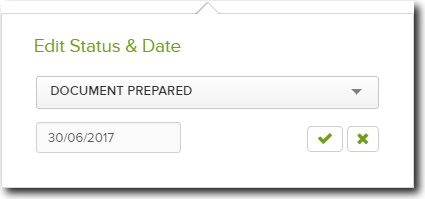
Users are able to quickly and easily change the status of a document.
Click on the Document status field to change the document to a new status.
Click  to accept changes or
  to ignore changes.
Document Options
Selecting  besides a document, provides users with a number of functions to manage trust documents. These options are explained in more detail below:
The Edit option will display the Edit Document Details screen.
| Field | Explanation |
|---|---|
| Date of Document |
Date the document was originally generated. Note: Changing this date will not change the date on the document PDFs |
| Document Status | Change status to help manage documents by indicating what stage the document is at. |
Latest Status Date |
The date the current Document Status was selected. |
The Attachments option allows users to view all the documents generated for the trust change. This may include the meeting minutes, resolutions, share certificates.
Users are also able to upload external files to CAS 360 to attach to the company. Files may include client letters or other supporting documents.
To view the attachments, hover your mouse over the document.
| Icon | Explanation |
|---|---|
 |
Delete an attachment. Attachments generated by CAS 360 or migrated from CAS desktop cannot be deleted. |
 |
Download a copy of the attachment to your computer |
 |
Preview the document |
Allows users to add new comments or view existing comments attached to a document.
 will appear beside documents with a comment. Users can hover over this icon to quickly view the comments made on documents.
Document Alerts Filters
The Trust Documents screen also has a number of filters allowing users to easily see documents that need action. These filters include:
Filter |
Explanation |
|---|---|
| All Documents | Display all documents in the documents screen |
| Overdue Documents | Show documents that are now late and where the late fee will apply |
| Due for Lodgement in 7 Days | Show documents which have within 7 days to be lodged before the late fee applies |
| Due for Lodgement within 14 days | Show documents which have within 14 days to be lodged before the late fee applies |
| Documents to be Lodged | Shows documents that have the  button available, and can be lodged directly from CAS 360. button available, and can be lodged directly from CAS 360. |
| Documents Lodged | Show only documents that have already been lodged |