Labels in CAS 360
Labels are used in CAS 360 to group companies together for quick selection and reporting purposes.
Some of the benefits of using labels are:
- To quickly filter companies.
- The ability to allocate and group companies.
- Grouping custom document templates.
Attach a label to a company
To add a label, beside the company, click into the label column.
Begin typing the label name.
CAS 360 will display a list of previously created labels. If not displayed, hit ENTER on your keyboard to save and create the new label. The company will now be attached to the label.
Remove a label from a company
From the Company selection screen, select into the label.
On your keyboard, press the BACKSPACE key to remove the label.
Delete a Label
From the Company Selection screen, under Advanced Filter, click the Label.
On your keyboard, press the BACKSPACE key to delete the label.
Manage Labels
Use the Manage Labels function to quickly add and remove labels from companies.
Click Manage Labels.
- Select the labels to attach or remove from your company list.
- You can filter the list of companies displayed by selecting the "Filter By" option in the top-right:
- Ticking companies from your company list will instantly attach the selected label.
- Click Save to confirm the Label changes.
Search labels
Use the search bar to find specific labels and access these easily. Entering a search will instantly return results for tags that match your entry.
Favourite labels
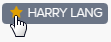
Users are able to favourite particular labels. Favouriting a label will ensure the label is automatically selected when accessing the Company Selection Screen.
To favorite a label, flag the star icon  beside the label name.